
Rizzo
Rizzo
About
- Username
- Rizzo
- Joined
- Visits
- 5,164
- Last Active
Comments
-
Could you please attach the logs? Be sure they are taken right after encountering the issue.
To find them:
- Press the Windows Key + R to open the "Run" command.
- In the text box paste the following: %USERPROFILE%\AppData\Local\DeadByDaylight\Saved\Logs
- Click "OK" - this will open your Dead by Daylight Logs folder.
- If it does not open the Dead by Daylight Logs folder, it may mean that when installing Dead by Daylight you chose to save your files somewhere else and will need to check there.
- The file called "DeadByDaylight.log" is your log file
Thank you.
-
Could you please attach the logs? Be sure they are taken right after encountering the issue.
To find them:
- Press the Windows Key + R to open the "Run" command.
- In the text box paste the following: %USERPROFILE%\AppData\Local\DeadByDaylight\Saved\Logs
- Click "OK" - this will open your Dead by Daylight Logs folder.
- If it does not open the Dead by Daylight Logs folder, it may mean that when installing Dead by Daylight you chose to save your files somewhere else and will need to check there.
- The file called "DeadByDaylight.log" is your log file
Thank you.
-
Could you please attach the logs? Be sure they are taken right after encountering the issue.
To find them:
- Press the Windows Key + R to open the "Run" command.
- In the text box paste the following: %USERPROFILE%\AppData\Local\DeadByDaylight\Saved\Logs
- Click "OK" - this will open your Dead by Daylight Logs folder.
- If it does not open the Dead by Daylight Logs folder, it may mean that when installing Dead by Daylight you chose to save your files somewhere else and will need to check there.
- The file called "DeadByDaylight.log" is your log file
Thank you.
-
Could you please attach the logs? Be sure they are taken right after encountering the issue.
To find them:
- Press the Windows Key + R to open the "Run" command.
- In the text box paste the following: %USERPROFILE%\AppData\Local\DeadByDaylight\Saved\Logs
- Click "OK" - this will open your Dead by Daylight Logs folder.
- If it does not open the Dead by Daylight Logs folder, it may mean that when installing Dead by Daylight you chose to save your files somewhere else and will need to check there.
- The file called "DeadByDaylight.log" is your log file
Thank you.
-
Could you please attach the logs? Be sure they are taken right after encountering the issue.
To find them:
- Press the Windows Key + R to open the "Run" command.
- In the text box paste the following: %USERPROFILE%\AppData\Local\DeadByDaylight\Saved\Logs
- Click "OK" - this will open your Dead by Daylight Logs folder.
- If it does not open the Dead by Daylight Logs folder, it may mean that when installing Dead by Daylight you chose to save your files somewhere else and will need to check there.
- The file called "DeadByDaylight.log" is your log file
Thank you.
-
Could you please attach the logs? Be sure they are taken right after encountering the issue.
To find them:
- Press the Windows Key + R to open the "Run" command.
- In the text box paste the following: %USERPROFILE%\AppData\Local\DeadByDaylight\Saved\Logs
- Click "OK" - this will open your Dead by Daylight Logs folder.
- If it does not open the Dead by Daylight Logs folder, it may mean that when installing Dead by Daylight you chose to save your files somewhere else and will need to check there.
- The file called "DeadByDaylight.log" is your log file
Thank you.
-
Could you please attach the logs? Be sure they are taken right after encountering the issue.
To find them:
- Press the Windows Key + R to open the "Run" command.
- In the text box paste the following: %USERPROFILE%\AppData\Local\DeadByDaylight\Saved\Logs
- Click "OK" - this will open your Dead by Daylight Logs folder.
- If it does not open the Dead by Daylight Logs folder, it may mean that when installing Dead by Daylight you chose to save your files somewhere else and will need to check there.
- The file called "DeadByDaylight.log" is your log file
Thank you.
-
Hey, everyone, thank you for reporting the issue and I feel sorry for anyone who had to see those pictures.
We have filters in place for this kind of issues and I'm sure they will be strengthen again in the next few hours due to this incident.
Once again, I apologize on the behalf of the entire team for what happened. -
@RpTheHotrod said:
https://forums.bhvr.com/dead-by-daylight/discussion/comment/4006153#Comment_4006153
Will this work in the middle of the match, or should I wait for the match to conclude? I know how finicky read/write can be sometimes. I unfortunately didn't have my video recording enabled at the time, and no friends were online to test it in a custom match with me. I will put that together along with a log next time I can find someone to test it with. Was just an unexpected thing that occurred in a public match.I was on the map that was released with Singularity's chapter.
You can finish the match, close the game and grab the logs.
-
Could you please attach the logs? Be sure they are taken right after encountering the issue.
To find them:
- Press the Windows Key + R to open the "Run" command.
- In the text box paste the following: %USERPROFILE%\AppData\Local\DeadByDaylight\Saved\Logs
- Click "OK" - this will open your Dead by Daylight Logs folder.
- If it does not open the Dead by Daylight Logs folder, it may mean that when installing Dead by Daylight you chose to save your files somewhere else and will need to check there.
- The file called "DeadByDaylight.log" is your log file
Thank you.
-
Could you please attach the logs? Be sure they are taken right after encountering the issue.
To find them:
- Press the Windows Key + R to open the "Run" command.
- In the text box paste the following: %USERPROFILE%\AppData\Local\DeadByDaylight\Saved\Logs
- Click "OK" - this will open your Dead by Daylight Logs folder.
- If it does not open the Dead by Daylight Logs folder, it may mean that when installing Dead by Daylight you chose to save your files somewhere else and will need to check there.
- The file called "DeadByDaylight.log" is your log file
Thank you.
-
Could you please attach the logs? Be sure they are taken right after encountering the issue.
To find them:
- Press the Windows Key + R to open the "Run" command.
- In the text box paste the following: %USERPROFILE%\AppData\Local\DeadByDaylight\Saved\Logs
- Click "OK" - this will open your Dead by Daylight Logs folder.
- If it does not open the Dead by Daylight Logs folder, it may mean that when installing Dead by Daylight you chose to save your files somewhere else and will need to check there.
- The file called "DeadByDaylight.log" is your log file
Thank you.
-
If you are on PC, could you please attach the logs? Be sure they are taken right after encountering the issue.
To find them:
- Press the Windows Key + R to open the "Run" command.
- In the text box paste the following: %USERPROFILE%\AppData\Local\DeadByDaylight\Saved\Logs
- Click "OK" - this will open your Dead by Daylight Logs folder.
- If it does not open the Dead by Daylight Logs folder, it may mean that when installing Dead by Daylight you chose to save your files somewhere else and will need to check there.
- The file called "DeadByDaylight.log" is your log file
Thank you.
-
There is nothing that can be done here for your ban, I am afraid, you need to follow what Support told you.
-
Could you please attach the logs? Be sure they are taken right after encountering the issue.
To find them:
- Press the Windows Key + R to open the "Run" command.
- In the text box paste the following: %USERPROFILE%\AppData\Local\DeadByDaylight\Saved\Logs
- Click "OK" - this will open your Dead by Daylight Logs folder.
- If it does not open the Dead by Daylight Logs folder, it may mean that when installing Dead by Daylight you chose to save your files somewhere else and will need to check there.
- The file called "DeadByDaylight.log" is your log file
Thank you.
-
Could you please attach the logs? Be sure they are taken right after encountering the issue.
To find them:
- Press the Windows Key + R to open the "Run" command.
- In the text box paste the following: %USERPROFILE%\AppData\Local\DeadByDaylight\Saved\Logs
- Click "OK" - this will open your Dead by Daylight Logs folder.
- If it does not open the Dead by Daylight Logs folder, it may mean that when installing Dead by Daylight you chose to save your files somewhere else and will need to check there.
- The file called "DeadByDaylight.log" is your log file
Thank you.
-
Could you please attach the logs? Be sure they are taken right after encountering the issue.
To find them:
- Press the Windows Key + R to open the "Run" command.
- In the text box paste the following: %USERPROFILE%\AppData\Local\DeadByDaylight\Saved\Logs
- Click "OK" - this will open your Dead by Daylight Logs folder.
- If it does not open the Dead by Daylight Logs folder, it may mean that when installing Dead by Daylight you chose to save your files somewhere else and will need to check there.
- The file called "DeadByDaylight.log" is your log file
Thank you.
-
Could you please attach the logs? Be sure they are taken right after encountering the issue.
To find them:
- Press the Windows Key + R to open the "Run" command.
- In the text box paste the following: %USERPROFILE%\AppData\Local\DeadByDaylight\Saved\Logs
- Click "OK" - this will open your Dead by Daylight Logs folder.
- If it does not open the Dead by Daylight Logs folder, it may mean that when installing Dead by Daylight you chose to save your files somewhere else and will need to check there.
- The file called "DeadByDaylight.log" is your log file
Thank you.
-
Could you please attach the logs? Be sure they are taken right after encountering the issue.
To find them:
- Press the Windows Key + R to open the "Run" command.
- In the text box paste the following: %USERPROFILE%\AppData\Local\DeadByDaylight\Saved\Logs
- Click "OK" - this will open your Dead by Daylight Logs folder.
- If it does not open the Dead by Daylight Logs folder, it may mean that when installing Dead by Daylight you chose to save your files somewhere else and will need to check there.
- The file called "DeadByDaylight.log" is your log file
Thank you.
-
Could you please attach the logs? Be sure they are taken right after encountering the issue.
To find them:
- Press the Windows Key + R to open the "Run" command.
- In the text box paste the following: %USERPROFILE%\AppData\Local\DeadByDaylight\Saved\Logs
- Click "OK" - this will open your Dead by Daylight Logs folder.
- If it does not open the Dead by Daylight Logs folder, it may mean that when installing Dead by Daylight you chose to save your files somewhere else and will need to check there.
- The file called "DeadByDaylight.log" is your log file
Thank you.
-
Just a reminder to please avoid personal attacks.
-
Could you please attach the logs? Be sure they are taken right after encountering the issue.
To find them:
- Press the Windows Key + R to open the "Run" command.
- In the text box paste the following: %USERPROFILE%\AppData\Local\DeadByDaylight\Saved\Logs
- Click "OK" - this will open your Dead by Daylight Logs folder.
- If it does not open the Dead by Daylight Logs folder, it may mean that when installing Dead by Daylight you chose to save your files somewhere else and will need to check there.
- The file called "DeadByDaylight.log" is your log file
Thank you.
-
Could you please attach the logs? Be sure they are taken right after encountering the issue.
To find them:
- Press the Windows Key + R to open the "Run" command.
- In the text box paste the following: %USERPROFILE%\AppData\Local\DeadByDaylight\Saved\Logs
- Click "OK" - this will open your Dead by Daylight Logs folder.
- If it does not open the Dead by Daylight Logs folder, it may mean that when installing Dead by Daylight you chose to save your files somewhere else and will need to check there.
- The file called "DeadByDaylight.log" is your log file
Thank you.
-
Could you please attach the logs? Be sure they are taken right after encountering the issue.
To find them:
- Press the Windows Key + R to open the "Run" command.
- In the text box paste the following: %USERPROFILE%\AppData\Local\DeadByDaylight\Saved\Logs
- Click "OK" - this will open your Dead by Daylight Logs folder.
- If it does not open the Dead by Daylight Logs folder, it may mean that when installing Dead by Daylight you chose to save your files somewhere else and will need to check there.
- The file called "DeadByDaylight.log" is your log file
Thank you.
-
Could you please attach the logs? Be sure they are taken right after encountering the issue.
To find them:
- Press the Windows Key + R to open the "Run" command.
- In the text box paste the following: %USERPROFILE%\AppData\Local\DeadByDaylight\Saved\Logs
- Click "OK" - this will open your Dead by Daylight Logs folder.
- If it does not open the Dead by Daylight Logs folder, it may mean that when installing Dead by Daylight you chose to save your files somewhere else and will need to check there.
- The file called "DeadByDaylight.log" is your log file
Thank you.
-
Could you please attach the logs? Be sure they are taken right after encountering the issue.
To find them:
- Press the Windows Key + R to open the "Run" command.
- In the text box paste the following: %USERPROFILE%\AppData\Local\DeadByDaylight\Saved\Logs
- Click "OK" - this will open your Dead by Daylight Logs folder.
- If it does not open the Dead by Daylight Logs folder, it may mean that when installing Dead by Daylight you chose to save your files somewhere else and will need to check there.
- The file called "DeadByDaylight.log" is your log file
Thank you.
-
Could you please attach the logs? Be sure they are taken right after encountering the issue.
To find them:
- Press the Windows Key + R to open the "Run" command.
- In the text box paste the following: %USERPROFILE%\AppData\Local\DeadByDaylight\Saved\Logs
- Click "OK" - this will open your Dead by Daylight Logs folder.
- If it does not open the Dead by Daylight Logs folder, it may mean that when installing Dead by Daylight you chose to save your files somewhere else and will need to check there.
- The file called "DeadByDaylight.log" is your log file
Thank you.
-
To find the logs:
- Press the Windows Key + R to open the "Run" command.
- In the text box paste the following: %USERPROFILE%\AppData\Local\DeadByDaylight\Saved\Logs
- Click "OK" - this will open your Dead by Daylight Logs folder.
- If it does not open the Dead by Daylight Logs folder, it may mean that when installing Dead by Daylight you chose to save your files somewhere else and will need to check there.
- The file called "DeadByDaylight.log" is your log file
Thank you.
-
Let's keep the discussion civil and constructive.
Thank you. -
@Str8A1i3n said:
https://forums.bhvr.com/dead-by-daylight/discussion/comment/3989481#Comment_3989481
thank you though i just figured out the reason im a lil slow😭
No worries, it happens!
-
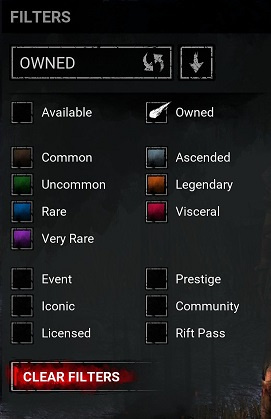
Do you have any of the filters selected when checking your cosmetics?
-
Could you please attach the logs? Be sure they are taken right after encountering the issue.
To find them:
- Press the Windows Key + R to open the "Run" command.
- In the text box paste the following: %USERPROFILE%\AppData\Local\DeadByDaylight\Saved\Logs
- Click "OK" - this will open your Dead by Daylight Logs folder.
- If it does not open the Dead by Daylight Logs folder, it may mean that when installing Dead by Daylight you chose to save your files somewhere else and will need to check there.
- The file called "DeadByDaylight.log" is your log file
Thank you.
-
Could you please attach the logs? Be sure they are taken right after encountering the issue.
To find them:
- Press the Windows Key + R to open the "Run" command.
- In the text box paste the following: %USERPROFILE%\AppData\Local\DeadByDaylight\Saved\Logs
- Click "OK" - this will open your Dead by Daylight Logs folder.
- If it does not open the Dead by Daylight Logs folder, it may mean that when installing Dead by Daylight you chose to save your files somewhere else and will need to check there.
- The file called "DeadByDaylight.log" is your log file
Thank you.
-
Could you please attach the logs? Be sure they are taken right after encountering the issue.
To find them:
- Press the Windows Key + R to open the "Run" command.
- In the text box paste the following: %USERPROFILE%\AppData\Local\DeadByDaylight\Saved\Logs
- Click "OK" - this will open your Dead by Daylight Logs folder.
- If it does not open the Dead by Daylight Logs folder, it may mean that when installing Dead by Daylight you chose to save your files somewhere else and will need to check there.
- The file called "DeadByDaylight.log" is your log file
Thank you.
-
Hello, when you want to report a bug, please check the bug report section to see if it has been reported already and upvote it, otherwise you can open a new report following the given template.
If you are on PC, please be sure to attach the logs taken right after you encountered the bug, you can find them here:- Press the Windows Key + R to open the "Run" command.
- In the text box paste the following: %USERPROFILE%\AppData\Local\DeadByDaylight\Saved\Logs
- Click "OK" - this will open your Dead by Daylight Logs folder.
- If it does not open the Dead by Daylight Logs folder, it may mean that when installing Dead by Daylight you chose to save your files somewhere else and will need to check there.
- The file called "DeadByDaylight.log" is your log file
Thank you!
-
Could you please attach the logs? Be sure they are taken right after encountering the issue.
To find them:
- Press the Windows Key + R to open the "Run" command.
- In the text box paste the following: %USERPROFILE%\AppData\Local\DeadByDaylight\Saved\Logs
- Click "OK" - this will open your Dead by Daylight Logs folder.
- If it does not open the Dead by Daylight Logs folder, it may mean that when installing Dead by Daylight you chose to save your files somewhere else and will need to check there.
- The file called "DeadByDaylight.log" is your log file
Thank you.
-
Could you please attach the logs? Be sure they are taken right after encountering the issue.
To find them:
- Press the Windows Key + R to open the "Run" command.
- In the text box paste the following: %USERPROFILE%\AppData\Local\DeadByDaylight\Saved\Logs
- Click "OK" - this will open your Dead by Daylight Logs folder.
- If it does not open the Dead by Daylight Logs folder, it may mean that when installing Dead by Daylight you chose to save your files somewhere else and will need to check there.
- The file called "DeadByDaylight.log" is your log file
Thank you.
-
Hello, when you want to report a bug, please check the bug report section to see if it has been reported already and upvote it, otherwise you can open a new report following the given template.
If you are on PC, please be sure to attach the logs taken right after you encountered the bug, you can find them here:- Press the Windows Key + R to open the "Run" command.
- In the text box paste the following: %USERPROFILE%\AppData\Local\DeadByDaylight\Saved\Logs
- Click "OK" - this will open your Dead by Daylight Logs folder.
- If it does not open the Dead by Daylight Logs folder, it may mean that when installing Dead by Daylight you chose to save your files somewhere else and will need to check there.
- The file called "DeadByDaylight.log" is your log file
Thank you!
-
Could you please attach the logs? Be sure they are taken right after encountering the issue.
To find them:
- Press the Windows Key + R to open the "Run" command.
- In the text box paste the following: %USERPROFILE%\AppData\Local\DeadByDaylight\Saved\Logs
- Click "OK" - this will open your Dead by Daylight Logs folder.
- If it does not open the Dead by Daylight Logs folder, it may mean that when installing Dead by Daylight you chose to save your files somewhere else and will need to check there.
- The file called "DeadByDaylight.log" is your log file
Thank you.
-
@FPTpang_TV said:
https://us.v-cdn.net/6030815/uploads/IY4XZ0FXXGLG/deadbydaylight-egs.log
Is it this file, or another one in the picture?
https://us.v-cdn.net/6030815/uploads/JVJ6B2BA7S6E/screenshot-2025-08-22-160939.png
It's the correct one, thank you!
-
Could you please attach the logs? Be sure they are taken right after encountering the issue.
To find them:
- Press the Windows Key + R to open the "Run" command.
- In the text box paste the following: %USERPROFILE%\AppData\Local\DeadByDaylight\Saved\Logs
- Click "OK" - this will open your Dead by Daylight Logs folder.
- If it does not open the Dead by Daylight Logs folder, it may mean that when installing Dead by Daylight you chose to save your files somewhere else and will need to check there.
- The file called "DeadByDaylight.log" is your log file
Thank you.
-
Could you please attach the logs? Be sure they are taken right after encountering the issue.
To find them:
- Press the Windows Key + R to open the "Run" command.
- In the text box paste the following: %USERPROFILE%\AppData\Local\DeadByDaylight\Saved\Logs
- Click "OK" - this will open your Dead by Daylight Logs folder.
- If it does not open the Dead by Daylight Logs folder, it may mean that when installing Dead by Daylight you chose to save your files somewhere else and will need to check there.
- The file called "DeadByDaylight.log" is your log file
Thank you.
-
Could you please attach the logs? Be sure they are taken right after encountering the issue.
To find them:
- Press the Windows Key + R to open the "Run" command.
- In the text box paste the following: %USERPROFILE%\AppData\Local\DeadByDaylight\Saved\Logs
- Click "OK" - this will open your Dead by Daylight Logs folder.
- If it does not open the Dead by Daylight Logs folder, it may mean that when installing Dead by Daylight you chose to save your files somewhere else and will need to check there.
- The file called "DeadByDaylight.log" is your log file
Thank you.
-
If you are on PC, could you please attach the logs? Be sure they are taken right after encountering the issue.
To find them:
- Press the Windows Key + R to open the "Run" command.
- In the text box paste the following: %USERPROFILE%\AppData\Local\DeadByDaylight\Saved\Logs
- Click "OK" - this will open your Dead by Daylight Logs folder.
- If it does not open the Dead by Daylight Logs folder, it may mean that when installing Dead by Daylight you chose to save your files somewhere else and will need to check there.
- The file called "DeadByDaylight.log" is your log file
Thank you.
-
Could you please attach the logs? Be sure they are taken right after encountering the issue.
To find them:
- Press the Windows Key + R to open the "Run" command.
- In the text box paste the following: %USERPROFILE%\AppData\Local\DeadByDaylight\Saved\Logs
- Click "OK" - this will open your Dead by Daylight Logs folder.
- If it does not open the Dead by Daylight Logs folder, it may mean that when installing Dead by Daylight you chose to save your files somewhere else and will need to check there.
- The file called "DeadByDaylight.log" is your log file
Thank you.
-
@Zeevilone said:
When I did that
https://us.v-cdn.net/6030815/uploads/NKF72G12OCQX/deadbydaylight-backup-2025-08-12-00-38-21.log
https://us.v-cdn.net/6030815/uploads/ID1FZA72F5LV/deadbydaylight-backup-2025-08-12-07-04-38.log
https://us.v-cdn.net/6030815/uploads/TT7N1G9SKHI8/deadbydaylight-backup-2025-08-12-10-04-48.log
https://us.v-cdn.net/6030815/uploads/NTB7XHK65M95/deadbydaylight-backup-2025-08-12-11-50-12.log
https://us.v-cdn.net/6030815/uploads/SUPKC66HDV69/deadbydaylight-backup-2025-08-12-12-17-45.log
all of them are as text files are those good to post?
Additionally I apologize the bug happened on the 12 and there are multiple for the 12
Correct.
And thank you for letting us know about the link not working correctly. -
Could you please attach the logs? Be sure they are taken right after encountering the issue.
To find them:
- Press the Windows Key + R to open the "Run" command.
- In the text box paste the following: %USERPROFILE%\AppData\Local\DeadByDaylight\Saved\Logs
- Click "OK" - this will open your Dead by Daylight Logs folder.
- If it does not open the Dead by Daylight Logs folder, it may mean that when installing Dead by Daylight you chose to save your files somewhere else and will need to check there.
- The file called "DeadByDaylight.log" is your log file
Thank you.
-
Could you please attach the logs? Be sure they are taken right after encountering the issue.
To find them:
- Press the Windows Key + R to open the "Run" command.
- In the text box paste the following: %USERPROFILE%\AppData\Local\DeadByDaylight\Saved\Logs
- Click "OK" - this will open your Dead by Daylight Logs folder.
- If it does not open the Dead by Daylight Logs folder, it may mean that when installing Dead by Daylight you chose to save your files somewhere else and will need to check there.
- The file called "DeadByDaylight.log" is your log file
Thank you.
-
@Sothis said:
https://forums.bhvr.com/dead-by-daylight/discussion/comment/3979368#Comment_3979368
Hi Mandy,
I’m not sure how to attach a video to a post here, it doesn’t seem to let me.
I have however sent in a support ticket about Last Stand and in that ticket, have included a video demonstrating Last Stand causing a faster vault. I’m not sure if that helps, sorry!
You can upload the clip to Youtube as unlisted and post the link.
-
If you are on PC, could you please attach the logs? Be sure they are taken right after encountering the issue.
To find them:
- Press the Windows Key + R to open the "Run" command.
- In the text box paste the following: %USERPROFILE%\AppData\Local\DeadByDaylight\Saved\Logs
- Click "OK" - this will open your Dead by Daylight Logs folder.
- If it does not open the Dead by Daylight Logs folder, it may mean that when installing Dead by Daylight you chose to save your files somewhere else and will need to check there.
- The file called "DeadByDaylight.log" is your log file
Thank you.