
forthelulz
forthelulz
About
- Username
- forthelulz
- Joined
- Visits
- 838
- Last Active
Comments
-
@FichteHiro said:
https://forum.deadbydaylight.com/en/discussion/comment/1160329#Comment_1160329
https://forum.deadbydaylight.com/en/discussion/comment/1159962#Comment_1159962
Yeah, that's what Prove Thyself does. I don't understand what's wrong.
And the numbers @Fibijean used are correct. You can calculate them yourself if you want to. In case you still think they're incorrect, tell me what values are correct according to your calculations.
Other than the initial starting values of 44.44, 33.33 and 28.57 the rest is incorrect.
Assuming the one using the perk is only given the 10% repair speed bonus once (so 10% total regardless if there are 1, 2 or 3 additional survivors) and not 10% for each other survivor (so 10% for 1, 20% for 2 or 30% for 3) even though the wording makes it sound like they would get 10% for each survivor. That means that:
20% for 1 additional survivor = 44.44 - 8.888 = 35.552
30% for 2 additional survivors = 33.33 - 9.999 = 23.331
40% for 3 additional survivors = 28.57 - 11.428 = 17.142
I doubt that it would grant +10% to the person using the perk for each additional survivor but if so that means that:
20% for 1 additional survivor = 44.44 - 8.888 = 35.552
40% for 2 additional survivors = 33.33 - 13.332 = 19.998
60% for 3 additional survivors = 28.57 - 17.152 = 11.428
-
@FichteHiro said:
https://forum.deadbydaylight.com/en/discussion/comment/1159969#Comment_1159969
Yeah, constructive feedback is always welcome.
For every other survivor working on a generator within 4m you gain 10% repair speed bonus. This same bonus is also applied to all other survivors within range.
-
@Fibijean said:
https://forum.deadbydaylight.com/en/discussion/comment/1159663#Comment_1159663
No worries, I'll break it down for you. The first important thing to know is that Prove Thyself doesn't stack, so there's no benefit to having multiple Prove Thyselfs on the same generator because only one of them will actually have an effect.
If two survivors complete a generator together without Prove Thyself, it will take them 44.4 seconds. If one of them has Prove Thyself, it will take them 40.4 seconds. So Prove Thyself actually saves them 4 seconds for that first one, my mistake. I'll edit the comment above to reflect that.
If three survivors complete a generator together without Prove Thyself, it will take them 33.3 seconds. If one of them has Prove Thyself, it will take them 27.8 seconds. So Prove Thyself saves them 5.5 seconds.
If all four survivors complete a generator together without Prove Thyself, it will take them 28.6 seconds. If one of them has Prove Thyself, it will take them 22 seconds. So Prove Thyself saves them 6.6 seconds.
I rounded off the decimals wrong when I did those original calculations, so my apologies, I was very tired. 0.1 seconds isn't much though - the point nevertheless stands that Prove Thyself does not actually make the huge difference that a lot of people seem to think it does.
Yep, I know it doesn't stack. What I meant is the numbers that you use don't actually add up even when using your break down of them. On top of this the numbers you're using to begin with, are incorrect.
-
For the record you can hold down your sprint key without actually moving to stop or prevent anyone healing you.
-
@Fibijean said:
Prove Thyself doesn't actually give as big a speed bonus as people think. With two people working on a generator, it makes a difference of about 0.4 seconds. With three people, it's about 5.6 seconds. With four, it's about 6.5 seconds. That might make a difference in a very niche scenario, but most of the time it's not really worth that much.
0.4s for 2 survivors
5.6s for 3 survivors
6.5s for 4 survivors
I can't understand how you came up with those numbers?
-
@FireHazard said:
https://forum.deadbydaylight.com/en/discussion/comment/1131284#Comment_1131284
I wouldn't see why it would be "illegal" in the first place, since their system wouldn't really be able to catch that, even if it was illegal.
All in all, I don't see why someone would do this to their game, it's mostly hindering them since DBD isn't really an FPS or anything like that. Slight FOV changes are nice, which is why we have perks for that, but something that extreme is more hindering than helpful.
I actually hate the way 16:9 (1920x1080) looks and feels with a passion even though that's monitors native resolution, and I think that 3:2 (1620x1080) looks great and even 4:3 (1440x1080) looks great except the UI is a little small but you get used to it after an hour. I don't change back and forth either I just keep my resolution changed because I prefer it for everything not just DBD.
Edit: Except for the smaller UI with 4:3 I don't see anything hindering, it looks fantastic, I'd even argue that 3:2 looks far better than 16:9 does by quite a bit.
-
I hate it as well, it massively exacerbates the already frustrating issues such as fast vaulting a window.. landing.. taking 4-5 full running steps and then still getting hit from the other side of the window when you have 60 ping etc
-
For the record editing the resolution values in the ini files doesn't even work, same thing goes for setting steam launch parameters they don't work since they're completely ignored because this game only uses your current desktop resolution.
So changing your desktop resolution before starting and while you're playing is the only way, which definitely isn't illegal.
-
Renaming or deleting the file works for now and takes maybe 15 seconds to do. Worth noting that it will be replaced on Tuesday with the new update, but after updating you can rename or delete the latest one and you'll be good for another 3 months until the next chapter.
-
I'd suggest disabling all enhancements/effects/surround both in windows sound settings as well as inside the steelseries software.
Also in windows and within its own software you want to set it to use 2 channel stereo.
I would also highly suggest you connect them via the 3.5mm cord, not usb, plugged directly into your headphone jack on your PC.
-
Why would you want to play in windowed mode? Even if you wanted to you can just hit alt-enter in game or uncheck the fullscreen mode box from the ingame settings menu.
-ResX= and -ResY= do absolutely nothing you can put whatever number you want in there the game will ignore them, so there is no point using them as a launch parameter, or changing the values in GameUserSettings.ini.
Also doing this will trigger the sg.ResolutionQuality= bug and drop it from =100 to =67 (which is finally fixed in 3.6.0).
-
Just bring a key, play normally and when the gens are done instead of going to open the gates and leaving, just find the hatch and escape?
-
@ZoneDymo said:
it seems the PTB specifically always messes this up, it should be fine when it actually comes out.
Also I would not disable AA entirely but rather fix it somewhat:
[/Script/Engine.RendererOverrideSettings]
r.DefaultFeature.MotionBlur=False
r.DefaultFeature.LensFlare=False
r.DefaultFeature.AntiAliasing=2
r.TemporalAACurrentFrameWeight=0.2
r.TemporalAASamples=64
r.TemporalAASharpness=0.6
r.Tonemapper.Sharpen=1.3
r.PostProcessAAQuality=4
I've played on every PTB and have never seen it disable the override lines in Engine.ini, the only time I can think of anything even close was 3-4 PTB's ago but all it did then was re-write all the ini's with their defaults for whatever reason, so simply changing them back to whatever you had before worked after that.
This time however it completely disables the use of any overrides (including the one that the Devs specifically gave us to disable AA which was: r.DefaultFeature.AntiAliasing=0) and so far only allows you to disable SmoothFrames. It might not be that way when it goes live but I have a feeling that it's not an accident or coincidence but mostly because more and more people are using them to turn off shadows, make the red stain brighter than the sun etc since all of these show up in the log files I imagine they decided to track how many were using it and decided to just disable everything.
GameUserSettings still allows you to disable vsync and set frameratelimit to whatever you wish etc.
I've also noticed there is now 4 gestures rather than 2, although they don't do anything as of yet.
-
@fleshbox said:
That is wider than than the standard 1080p though. Need a huge toaster of a card to run that resolution. Good luck. gtx 1080 should be able to handle that i guess.
I dont know. I run a 1060 and keep it on low or i can toast stuff with it. It gets to 70 c and i start freaking out. This game is not, how should i put it, optimized efficiently.
wait...1440..that is less wide it?
1080 high and 1920 wide...but you said 1440 wide and 1080 high?
Most graphic cards default fan curve allows the card to get quite hot before it starts to turns the fan much higher than 20-25% so that it stays quiet. I have a 1060 myself and since I use headphones I use Nvidia Inspector to set my fan @ 100% because I don't like how hot it lets it get before it cranks up the fan nor do I like the idea of it going up and down so close to near throttling temp & I'd rather just have it full blast and nowhere near throttling temps plus it doesn't seem that loud at all to me even without headphones.
When I got this game I had an 8:5 (1680x1050) monitor and when I got a new monitor that was 16:9 (1920x1080) I hated the way it looked and felt so I ended up switching my resolution back to 8:5 and I've tried 3:2 (1620x1080) which I found I like better than 8:5 as well as I've tried 4:3 (1440x1080) which I also like although skill checks are noticeably smaller and some of the menu but I found that the skill checks while smaller felt easier to hit.
Each of those resolutions (8:5 / 3:2 / 4:3) in that order, have less pixels so they are easier on your system than 1920x1080.
1920x1080 Startup:
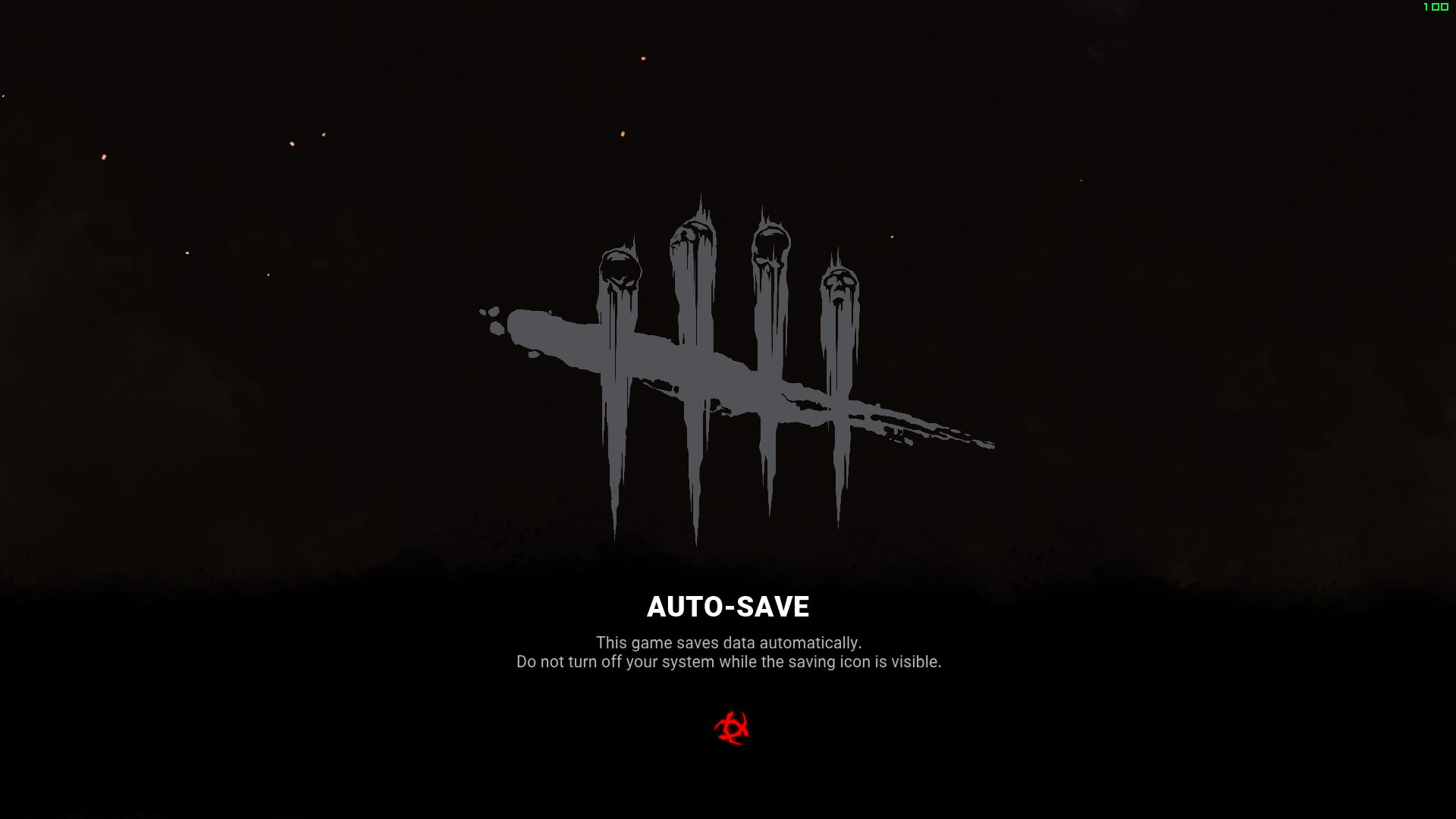
1440x1080 Startup:
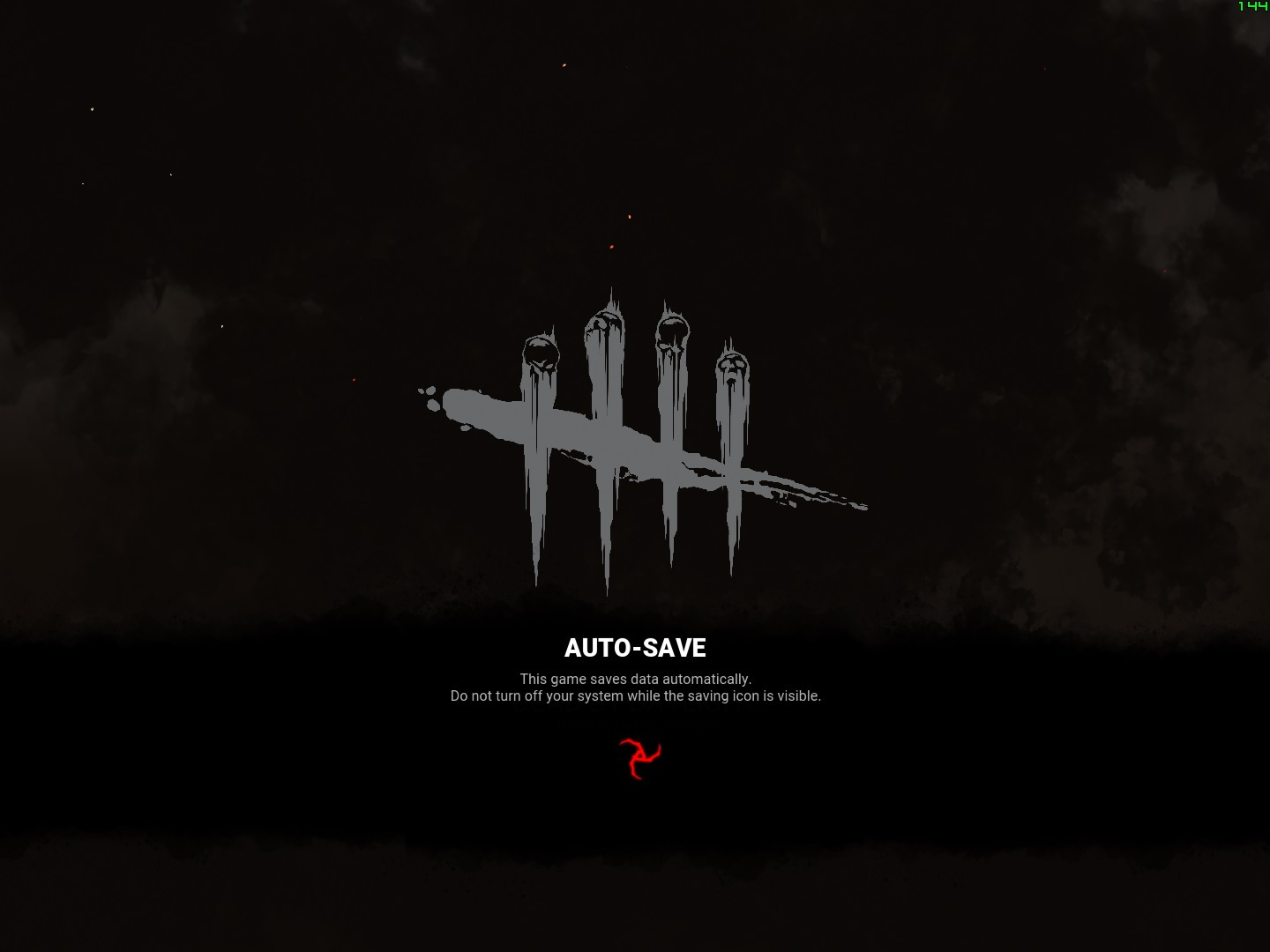
1920x1080:

1440x1080:

-
Always been stable here on the 3 systems I have here. Always use 100% resolution regardless of what system because it barely helps to lower that and it looks terrible.
I can get 120FPS more than 95% of the time but it does dip on some maps in some spots which bugs me so I use 90FPS and it never dips on any map even with the new doctor and that's on a 3 year old barely average system with an i7-6700 @3.4Ghz with a 1060 6GB and it uses maybe 3GB or so of system ram, a couple GB ram on card, 55-60% GPU and barely uses 50% CPU for that. My 4 year old laptop holds 60FPS also. Hell even on my ancient 11 year old Dell Dimension 9200 with a q6600 2.4Ghz that only has 4GB of ram with an almost 8 year old HD5700 1GB I can maintain 60FPS no dips.
This game is not very demanding at all on low, and even medium isn't bad just high and ultra suck but I wouldn't use them anyway.
-
- If you hit ESC then let go of M1 then ESC again while working on gens & totems it makes it act as if you're holding down M1 until you either press M1 again or the action finishes and also allows you to still use other keys normally.
- Just as you run out gate to escape if you alt-tab out of the game and back in quickly you'll regain control of your camera
-
@aurum_exe said:
@forthelulz That is interesting! You did this config editing \AppData\Local\DeadByDaylight\Saved\Config\WindowsNoEditor\GameUserSettings.ini ?
BTW, is it normal that a person who bought a game has to figure out how to "minimize" client issues analizing data packets? I mean, kudos to you dude, but if I were the software company I would take a bath of shame for that.
I was just attempting to figure out if there was anything possible to improve things and noticed while trying various things, I tried everything from playing @ 30FPS to every combo of other settings just to see what the effects were. I knew that using a multiple of server tickrate would help as well as having a rock steady FPS is also very important, so I worked on that and then I suddenly noticed the lack of packets being sent out from my client. After making sure it wasn't an issue with my network or system I started to try to figure out what would get me ~3600 packets/minute with 60 FPS. Even though my system can handle 120 FPS I find that 60 FPS works better overall although sadly it still doesn't fix everything, but it is much better for sure.
To disable Vsync and set a frameratelimit you edit bUseVsync= and FrameRateLimit= located in GameUserSettings.ini then save file normally.
To disable smoothframes you must add these two lines to Engine.ini and then save file normally:
[/Script/Engine.Engine]
bSmoothFrameRate=False
-
@danph7 said:
https://forum.deadbydaylight.com/en/discussion/comment/1034576#Comment_1034576
and where is the proof of this?
Use whatever method you prefer and count the incoming packets over the course of 60 seconds while in a match. I like using AppNetworkCounter because it's simple free and easy but there are many ways.
Server always sends 1800/minute (30 updates per second = 30hz) regardless of what is happening or your FPS.
-
Was that the entire contents? There should be a lot more than that. You upload the file into here or paste a bunch of the last 1/4 of it or whatever.
-
Mine is bugged too I'll also make a report in the bug report section as should everyone else
-
It's hidden by default you have to check the box to see hidden stuff
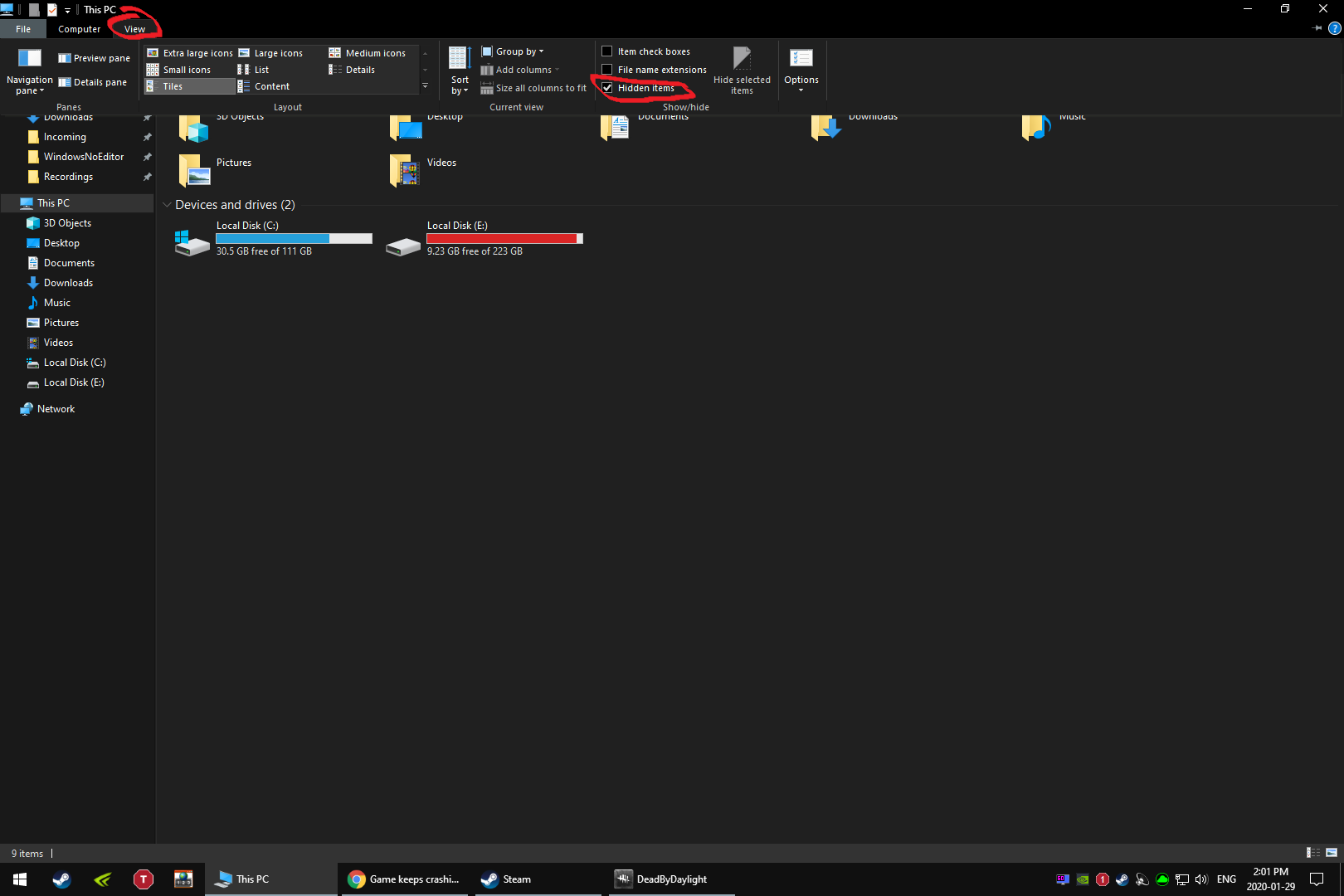
You could also try renaming or deleting the intro movie by renaming or deleting Intro.mp4
Located by default in Steam\steamapps\common\Dead by Daylight\DeadByDaylight\Content\Movies
-
Check the log file near the end maybe there is a clue in there?
~\Users\UseNameGoesHere\AppData\Local\DeadByDaylight\Saved\Logs
-
@aurum_exe said:
@forthelulz Yes the fps are locked at 60 and the rig is powerful enough to have enough stability to run way more complex games than DbD. The hit after voult is simply ridiculous in most of the situations. When you're in chase you've have to eyeball the distance, and you take decisions because of it. Then it comes the "latency". So you have to "mentally" subtract latency from your distance, and correct your next moves. It's hilarious. So always looking at the killer doesn't makes so much sense. There are Hillbilly chainsaw hits after voult that makes no sense at all. The problem aren't the hitboxes like everyone think. The problem is the "attack range cone" in front of the killer, and the player has absolutely no clues if the distance is far enough to take right decisions. Latency is predictable and fixable. I don't know why this game is different from any others. Think about Fortnite, same engine, but his code is close to perfection and has many latency predictability algorithms to adjust everything at runtime. Why DbD is different. Maybe the engineers are way better, or better paid.
Yeah I hated it so much that you can fast vault with plenty of time, fully land then take 3 running steps and still be hit constantly. So much so that I started trying to figure out the best way to minimize things.
I found locking frames (either by vsync or otherwise) as well as disabling smoothframes helped me a lot. By monitoring my incoming/outgoing packets and testing various things I noticed that the game in its default settings with with vsync on, using 60hz, and smoothframes left on resulted in my client only "registering" (sending out a packet) ~45 frames/second rather than the steady 60FPS I was showing at all times meaning it was ignoring those other frames as well as making the overtime timing as bad as possible since the server always updates 30hz.
Turning them off allowed me to constantly send out ~60FPS which helps the utterly absurd issues this game has tremendously but sadly doesn't fix, it is however worth looking into since it is quick and easy to check and fix on your end, and helps enough that I couldn't imagine going back.
-
Only ever play solo. I Love bond it's so useful giving so many type of information in so many ways so often that I don't play without it and it would be difficult to list all ways it is useful.
- Bond
- Borrowed Time
- Iron Will 3
- Inner Strength
-
@danph7 said:
https://forum.deadbydaylight.com/en/discussion/comment/1032133#Comment_1032133
...umm this is 2020...noone plays 30 fps anymore...hell most ppl are starting to leave 60...its all about 144-360hz....the future is now old man
I said multiples of 30.. which means 30, 60, 90, 120 and locked to one that your system can always maintain because the dedicated servers are running like they always have at 30hz.
-
@[Deleted User] said:
https://forum.deadbydaylight.com/en/discussion/comment/1033960#Comment_1033960
I did try that as well, got errors and couldn't even launch so I reverted it.
Also disabled steam overlay etc and everything I could find that may be impacting it on the forum :/
Maybe DBD's log file has some info, or the reshade logfile. It's gotta be something silly, it almost always is!
-
@johnmwarner said:
https://forum.deadbydaylight.com/en/discussion/comment/1033799#Comment_1033799
Thanks again, played two games as survivor and the scratches are much better especially from a distance.
Happy to help!
-
@[Deleted User] said:
https://forum.deadbydaylight.com/en/discussion/comment/1033799#Comment_1033799
Darn. Still crashes for me. But thank you for taking the time to do that, I'm glad it worked for the other person!
Did you try renaming every "dxgi" file to "d3d11" that is in the folder with deadbydaylight-win64-shipping.exe ?
-
Uninstall previous ReShade installs.
After that go to: ~Steam\steamapps\common\Dead by Daylight\DeadByDaylight\Binaries\Win64 folder and make sure that the file DefaultPreset.ini is NOT there, if it is delete it.
You want DBD to not be running when you do this.
Run ReShade install and click "select game or application to manage its reshade install"
Find and select: DeadByDaylight-Win64-Shipping (DeadByDaylight-Win64-Shipping.exe)
Click "Direct3d 10/11/12"
Page opens with list of effects leave them all selected and simply click "ok" - It will then download them all which only takes a few seconds.
Now click the top "Edit ReShade settings" button.
Second line from the the top "Effects Path" click the ... on the far right of that line and a Select Folder box will open, now navigate to the folder ~Steam\steamapps\common\Dead by Daylight\DeadByDaylight\Binaries\Win64\reshade-shaders\ and then click on the Folder "Shaders" that is located there and click "Select folder"
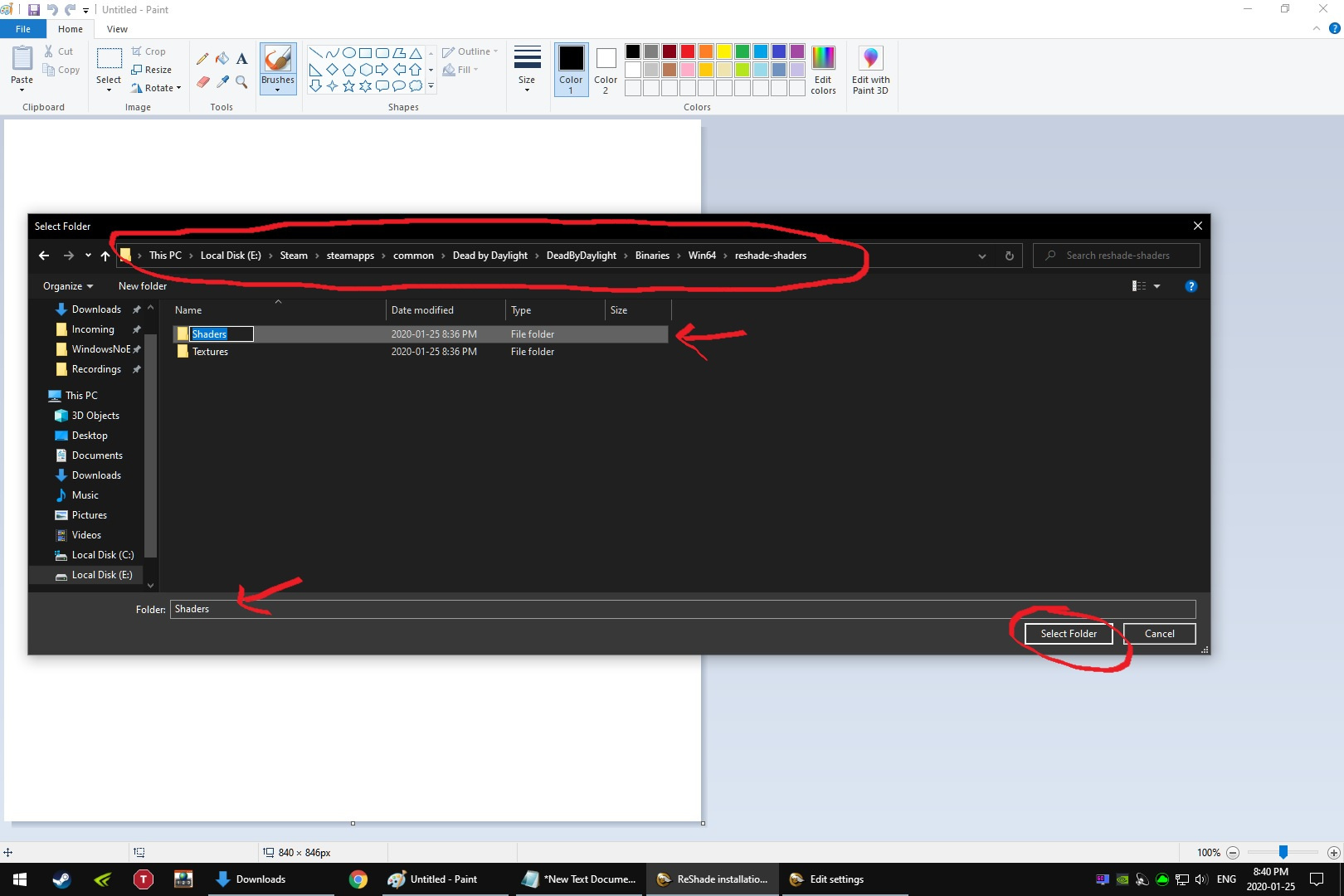
Third line from the top "Textures Path" click the ... on the far right on that line and and a Select Folder box will open, now navigate to the folder ~Steam\steamapps\common\Dead by Daylight\DeadByDaylight\Binaries\Win64\reshade-shaders\ and then click on the Folder "Textures" that is located there and click "Select folder"
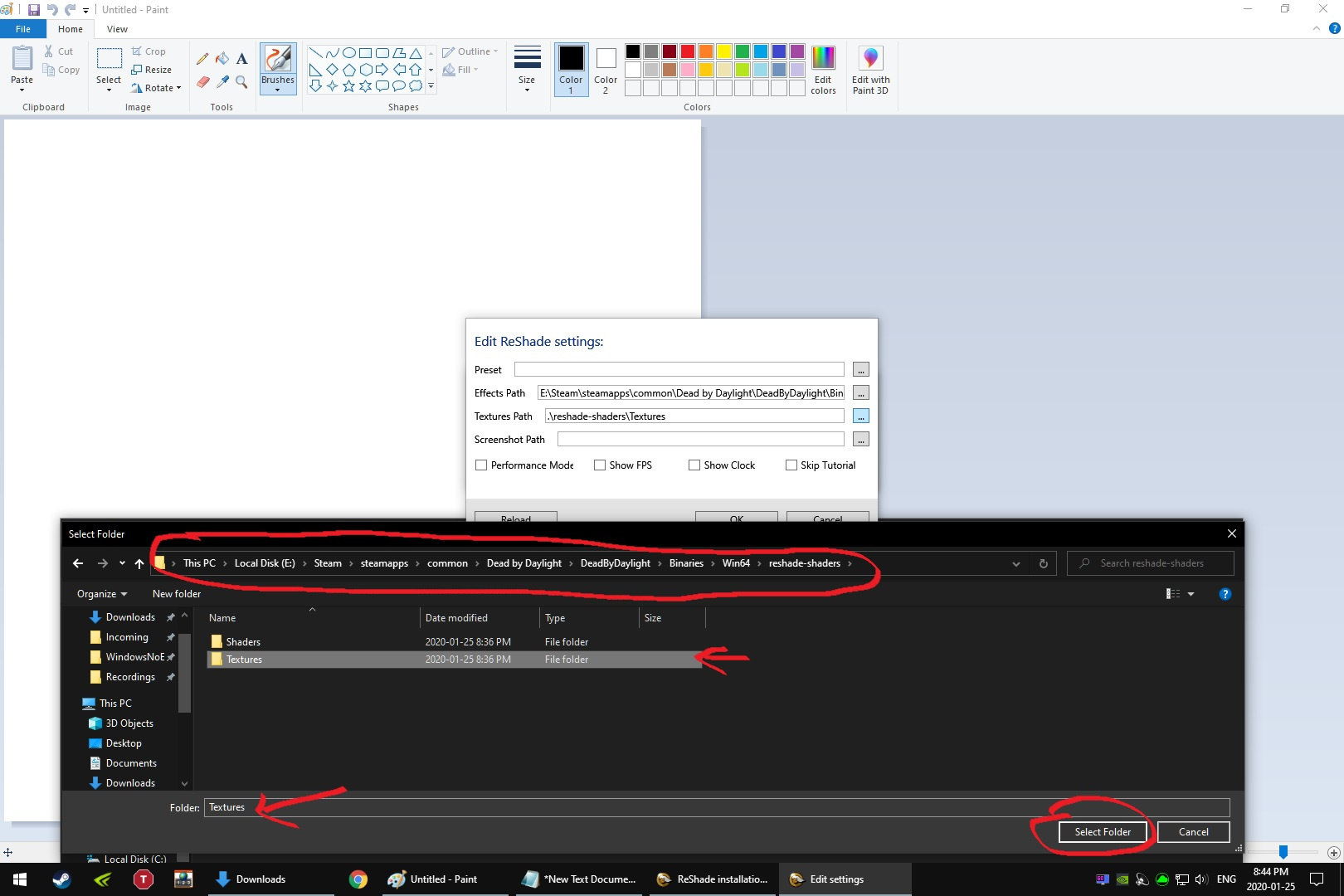
If done correctly it should look like this
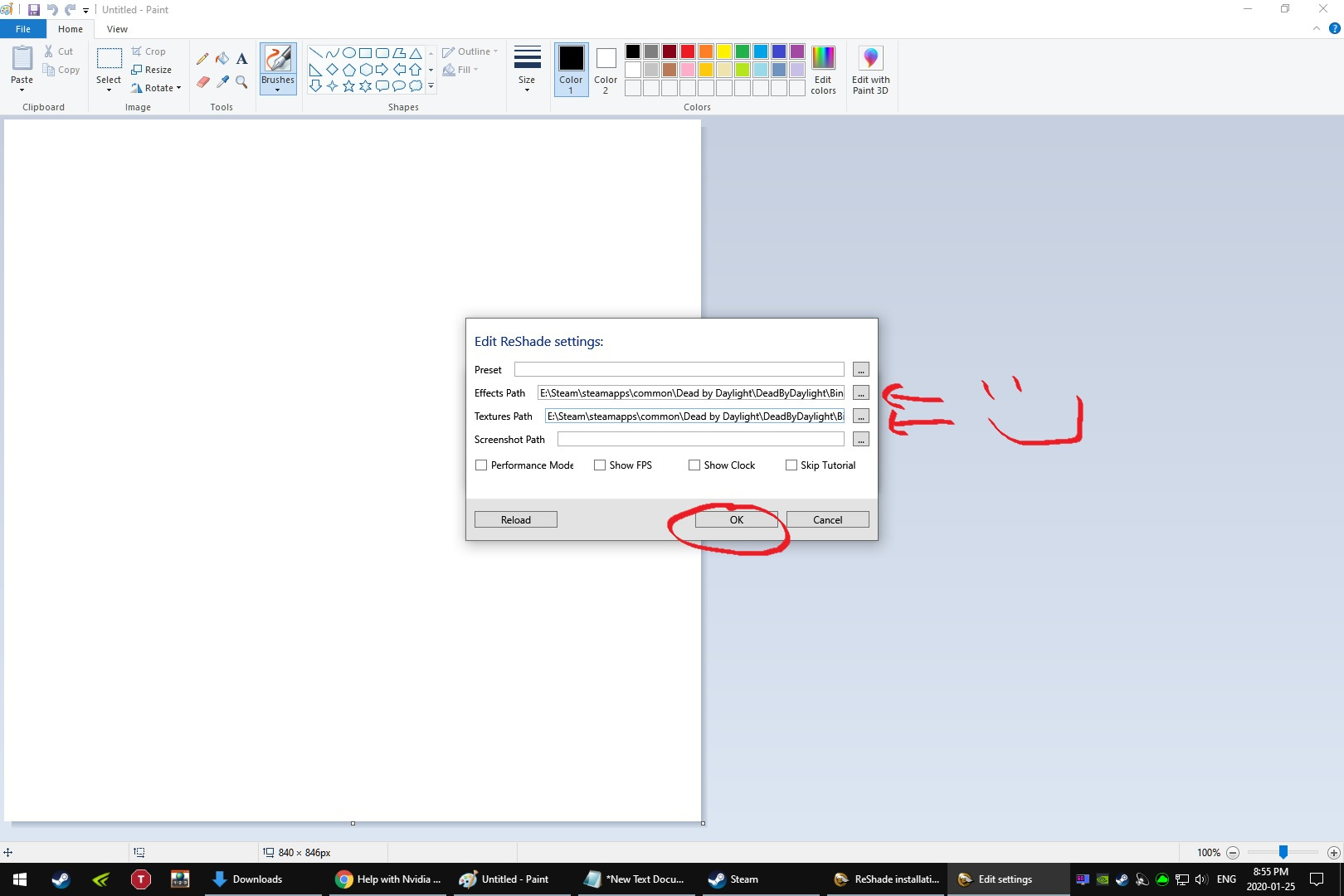
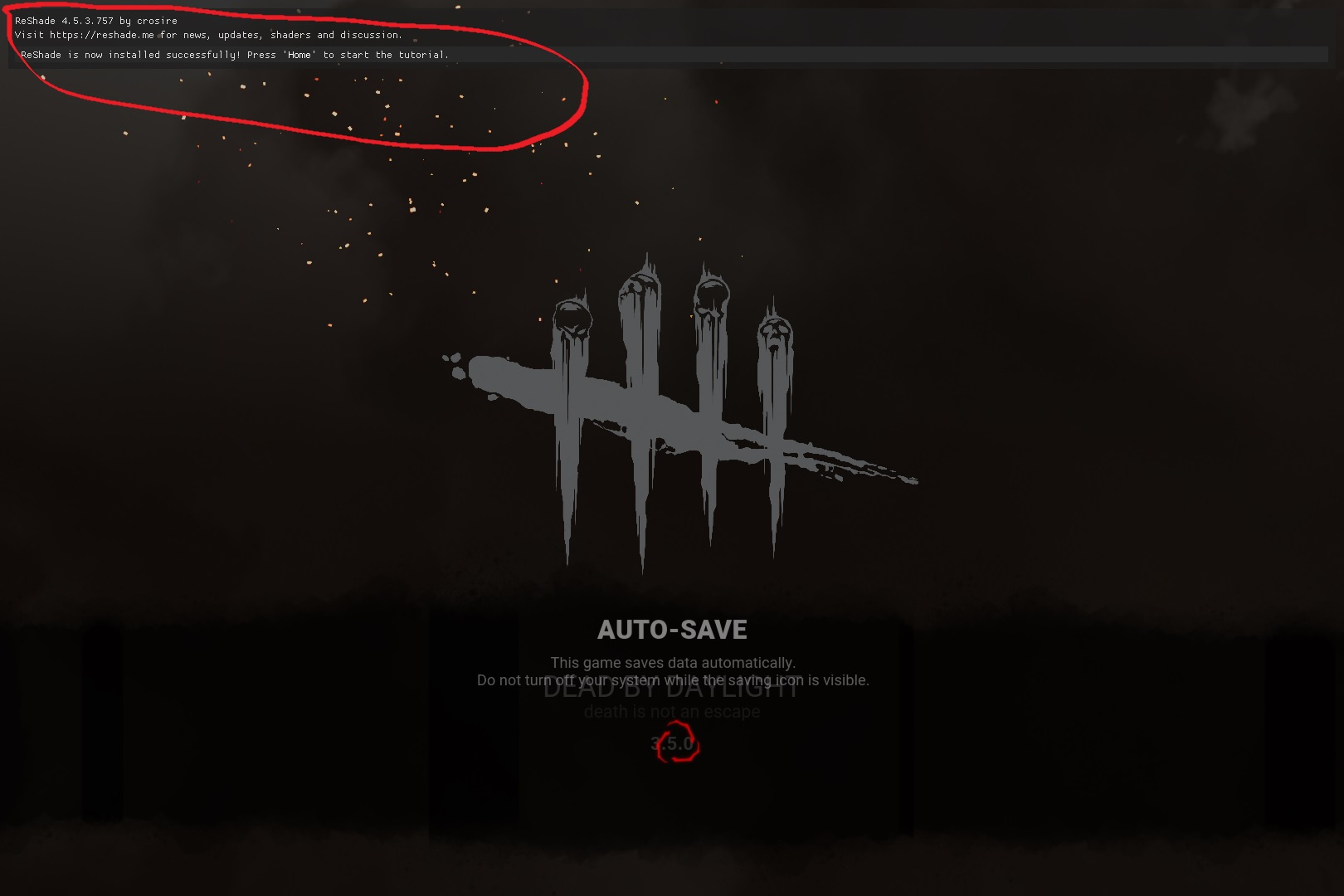
Click Ok. Then you can exit out of the ReShade box and fire up DBD.
-
Uninstall ReShade completely and I'll re-install mine and take screenshots of the steps to take and I'm sure it's just a matter of missing something that's causing your problem.
I had issues the very first time as well because I didn't understand one part of it and was doing it wrong.
-
@johnmwarner said:
https://forum.deadbydaylight.com/en/discussion/comment/1032454#Comment_1032454
Thank you I’ll fiddle myself too but I would appreciate your number, no rush!
Ok so I use Colorfullness & Technicolor2
Colorfullness I change from default .40 to .20 and leave the rest default.
&
Technicolor2 I raise the Red to 56 from its default 51 and I lower the strength from the default 1.0 to .750 everything else I leave default.
I keep my monitor at it's default settings for contrast and brightness, and set the color mode to neutral not 'cool' or 'warm' and dynamic contrast and any other stuff disabled.
When I disable them I'm actually shocked at how ugly and dull the game looks it's almost comical.
-
@[Deleted User] said:
https://forum.deadbydaylight.com/en/discussion/comment/1031810#Comment_1031810
EAC site says "selected versions" - do you know the latest whitelisted version? Yamaoka is a big black blob for me and I'd like to try it out.
Usually they're just a week or so behind when there is an update before they get around to verifying. I'm using the latest version available on the reshade.me website
-
Windows 10 has a few colorblind filters built in, both ReShade & Freestyle have numerous filters that should be able to help at least somewhat
-
@johnmwarner said:
https://forum.deadbydaylight.com/en/discussion/comment/1031810#Comment_1031810
Are there levels like 1–100 or do you go max?
I'm not at home but I believe for Colorfullness default is .70 I use .15 and technicolor I just increased the red from 51 to 61. I'll check and let you know in a couple hours when home.
@ZoneDymo said:
wait so you are actually trying to legally cheat?
Both ReShade and Freestyle are white listed by EAC and have been for like a couple of years.
-
While it doesn't solve the issues completely it is best to make sure that your FPS is locked to a multiple of 30 that your system can maintain at all times.
Having a fluctuating FPS, even mildly, greatly exacerbates the issues even more so if they aren't locked to a multiple of 30.
-
I recommend using ReShade with technicolor + colorfullness the whole game looks fricken fantastic!
-
On PC for survivor matches in the middle of nowhere Canada I rarely wait longer than 1-2 minutes no matter what time of day or night, it is usually faster so anytime it takes longer than 1-2 minutes I hit "Cancel" to see if it makes the noise but still says "Looking for match.." and when that happens I know it's bugged and I restart game, if the "Looking for match.." goes away with the noise and the ready button is there I hit it again.
Happens once or twice every ten searches.
-
You don't need to do anything with the ini files lol
- Use Low quality setting from the in-game menu / 100% Resolution and Auto-Adjust unchecked.
- Your monitor likely has color options such as Warm / Cool / Neutral etc. I suggest using Neutral for monitor settings and doing the adjusting via videocard control panel.
- Use your videocards control panel and adjust the contrast, brightness, gamma and especially the Digital Vibrance / Saturation levels. You can even tweak the Red Blue Green levels individually.
- Windows 10 has 3 built in color blind filters. The Red-green (green weak, deuteranopia) colorblindness filter really makes the red stain pop and works well in DbD especially on top of cranking up Digital Vibrance.
- ReShade has a ton of amazing filters and it is also white-listed by EAC
I would suggest running the Survivor tutorial because it only takes about 2 minutes to get to the part where the trapper is behind the wall swinging at you because you can see the red stain while doing various adjustments until you get it the way you want it, I usually run him to the far side so the stain is splashing up the wall and around me. It'll save you a lot of time :)
-
Check out what they used to do a couple of years ago. Brilliant actual blindingly bright white screen, it was insane.
-
@ASaltySurvivor said:
Hi everyone, I have a little problem.
Every time I open the game, the News tab pops up when I enter the main menu. Anyone knows how to solve this? It's not a serious problem, but it's just a little bit annoying.
I'd guess that at some point you followed the advice of one of the countless guides promising to do "whatever" and one of those suggestions was to set "Read-Only" on GameUserSettings.ini and if so that's the reason.
Pro-Tip: Any person, guide or how-to that suggests setting "Read-Only" on an ini file, which sadly is 99% of them, doesn't have a clue what they're talking about or suggesting and their advice should be ignored.
-
@ASaltySurvivor said:
Hi everyone, I have a little problem.
Every time I open the game, the News tab pops up when I enter the main menu. Anyone knows how to solve this? It's not a serious problem, but it's just a little bit annoying.
-
@snozer said:
https://forum.deadbydaylight.com/en/discussion/comment/953484#Comment_953484
So if we send some gameplay of streamers who edit the .ini file to make the killer light larger and brighter, they will get banned?
You don't need to edit the ini files for that if such a thing even exists.
You can easily make your game look like whichever streamers you're talking about completely legitimately...
Anyone is allowed to use the low quality setting and increase their brightness, contrast, digital vibrance settings in their video card control panel. Spend 5 minutes adjusting these correctly and I promise you the difference is literally night and day.
If that's not enough anyone can install Reshade or Freestyle which gives you 100x more ways to adjust how the game looks. Both of these programs are white listed by EAC.
-
A combo of too many people that didn't put any thought into not only what they're doing when it comes to configuring their FPS and vsync settings but also how to correctly do it and ended up doing it wrong which in itself creates all kinds of weird problems & that previously the dedicated servers were running at a tickrate of 30 which greatly exacerbated things. Now that they are using 60 with a hard cap of 120 it cuts down on some of the user created issues. Not to even mention how many people confuse refresh rate & fps and omg don't get me started on literally every single "guide" I've seen on YouTube and steam etc that all seem to love suggesting almost the stupidest things and worst possible settings lol
This game is quite fussy and touchy to begin with when everything is done correctly, and it really acts up when you do silly things like give yourself practically random high FPS values thinking it's doing something to help you when in fact it's making things much worse.
-
You're not able to do anything to make the game use exclusive fullscreen mode you just think you are, otherwise please explain exactly how it is that you are verifying it is actually using exclusive fullscreen mode so that I, or anyone, can do the same. I've tried every silly trick that the guides written by people that don't have a clue what they're talking about claim that work and verified none of them actually work because it is always just in borderless and never exclusive true fullscreen mode because it can't be done. But if you want to explain exactly what to do to make it use exclusive true fullscreen mode and exactly how it is that you verify this, I'll be happy to test it and report back.
But I know this isn't possible and hate misinformation being spread so much I made an account just to comment and hopefully @Peanits and/or a dev will comment and confirm the following:
1. This game has always been specifically designed NOT to use exclusive fullscreen mode for a reason.
2. That nothing can be added or set in any of .ini file and/or using any launch parameters can possibly force exclusive fullscreen mode due to point #1. Examples: FullScreenMode=0
-FullScreen
3. Setting the read-only attribute to an .ini file is not only foolish but effectively useless anyway because can't "force" the contents of the .ini to be used by the game for a few reasons. The first being this game as with most all other games are not actively using those exact .ini files they only read them and copy the contents to the internal files the engine uses that only the game itself can access. Next the games are programmed as to exactly which settings can be altered as well as the exact parameters that are allowed to be used for each one. If and when it encounters either no entry or a setting/parameter that isn't specifically allowed then it automatically ignores it and uses it's default setting & parameter instead, and when this happens it will at the same time write what it is using to the .ini files that we are able to access unless it isn't allowed to due to the read-only attribute being set on that .ini file then it won't write the change but this does not change the fact that it is still using the default setting/parameter internally. Keep in mind that any settings/parameters that you're allowed to use you can freely and since it is allowed the game will leave this setting/parameter as it is in the .ini files you are allowed to access.
This is easy to test in various ways but here are two different and easy examples.
*Make a backup copy of GameUserSettings.ini and put somewhere else before doing these tests*
*Make sure you do NOT have read-only attribute set on GameUserSettings.ini and the game is not running before doing each of the following demonstrations*
- Open GameUserSettings.ini then delete contents and either leave blank or fill with random gibberish. Save file. Set read-only on it. Start game. Notice that it uses all default settings showing it ignored the contents even though read-only was set. Close game. Replace with your backed up .ini
- Open GameUserSettings.ini and change a setting/parameter that you are ALLOWED to change and change it from its default parameter. For example bUseVsync= which by default is set to =True so change it to bUseVsync=False and then save file. Start game and then after getting to main menu quit game. Open GameUserSettings.ini and note that bUseVsync=False is still there and was not changed to the default which is bUseVsync=True demonstrating that you're allowed to change it. Replace GameUserSettings.ini.